
Picture the moment you have been working towards: a package priced, a client who has read your profile and decided yes. If Stripe is not connected, here is what actually happens on their screen. The checkout stops and tells them “Coach has not completed payment setup. Contact them directly.”
Almost nobody contacts you. They close the tab, and you never learn it happened — no failed payment, no notification, no name. It is the quietest way to lose a client on Repstra, and it is entirely fixable in the time it takes to make a coffee.
What you are actually switching on
Repstra uses Stripe Standard connected accounts and direct charges. In plain terms, that means the money is yours from the moment it moves:
- Your Stripe account, not ours. The payment, the customer and the subscription are all created on your account. Funds land there, then pay out to your bank.
- You are the merchant of record.Your business name is what shows on the client's card statement — not Repstra's. To them, they paid you, because they did.
- A real Stripe dashboard. Full login at dashboard.stripe.com: balances, receipts, refunds, and your own payout schedule, which you control — Repstra does not set it.
- You own your disputes. If a client ever charges back, the evidence form is in your dashboard and the outcome is yours to argue. That is the point of Standard accounts.
- Repstra never sees your banking details. Your BSB, account number and ID go from you to Stripe. We hold none of it.
- 1
Check where you actually stand
Open Settings in your dashboard and look at the Payouts (Stripe Connect) section. It says one of three things: “Not connected yet.”, “Stripe still needs more information to enable payouts.”, or “Payouts are enabled. Client payments flow straight to your bank.” Only the third one means a client can pay you.
- 2
Click Connect Stripe payouts
The button lives in the Marketplace listingsection near the top of Settings. It opens Stripe's own onboarding in a new tab: business details, identity, BSB and account number. Have those handy and it is a short form. Stop partway and the button becomes Continue Stripe setup — you pick up where you left off, nothing lost.
- 3
If you connected before 28 July 2026, reconnect once
Same button. Repstra recognises the older Express account, creates your Standard one and recreates your package prices on it, because prices cannot cross between accounts. You do not need to rebuild packages, re-invite clients or redo your listing.
- 4
Confirm payouts are enabled
When Stripe finishes verifying, Settings reads “Payouts are enabled. Client payments flow straight to your bank.” and the button becomes Stripe dashboard. That is the whole job — your checkout works, and your marketplace listing is no longer blocked.
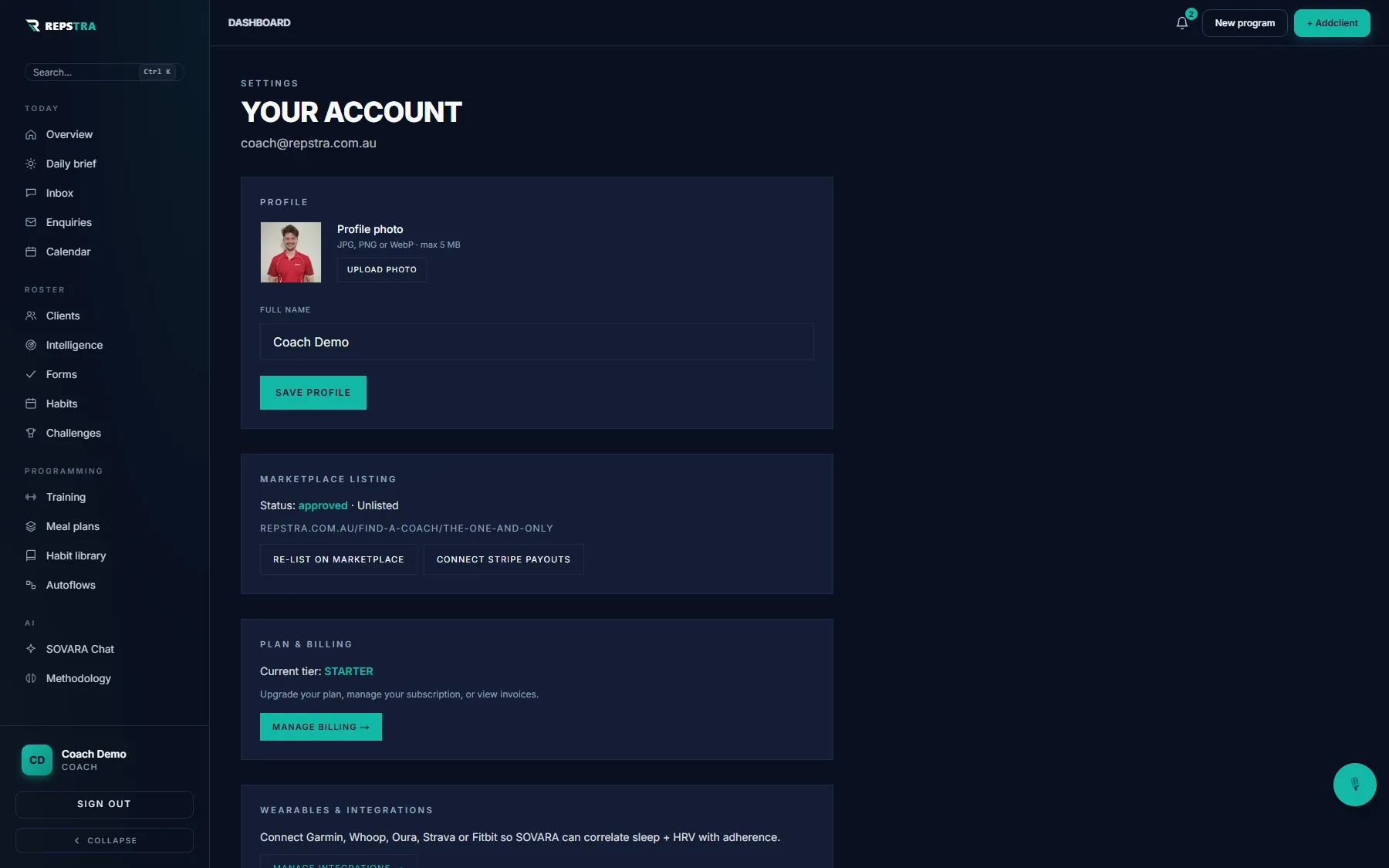
Settings — the Connect Stripe payouts button sits in the Marketplace listing section.
The step-by-step version, with every screen, is in connecting Stripe and getting paid. Do it once and selling a package is just sharing a link — no invoice, no bank transfer, no chasing.