
Every package you sell — to your own clients or through the marketplace — is paid through Stripe, straight to your bank. Connecting takes a few minutes and you only do it once.
- 1
Open Settings
Go to Settings in your dashboard. The Stripe button lives in the Marketplace listing section near the top of the page (the Payouts (Stripe Connect) section further down shows your status).
- 2
Click Connect Stripe payouts
Click Connect Stripe payouts. Stripe's own secure onboarding opens in a new tab — your banking and identity details go directly to Stripe; Repstra never sees or stores them.
- 3
Complete Stripe's steps
Stripe walks you through business details, identity verification and your bank account. Have your BSB and account number handy and it's a five-minute form. If you bail partway, no drama — the button in Settings becomes Continue Stripe setup and you resume where you left off.
- 4
Confirm payouts are enabled
When Stripe finishes verifying, your Settings page reads “Payouts are enabled. Client payments flow straight to your bank.” The button becomes Stripe dashboard — one click to balances, payouts and payment history, any time.
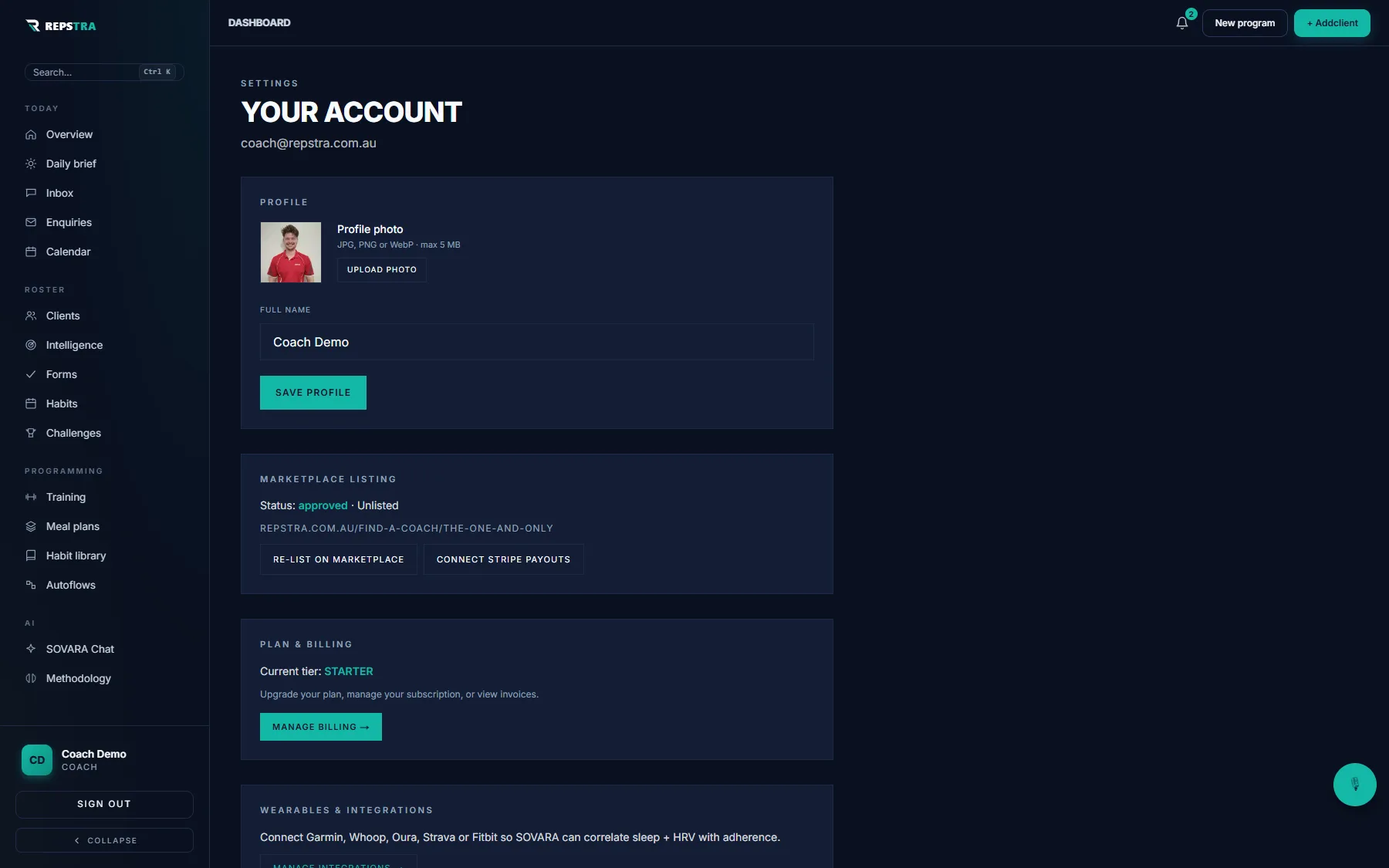
Settings — the Connect Stripe payouts button sits in the Marketplace listing section.
Once connected, selling a package is just sharing a link — the checkout, the receipt and the payout all happen without you touching an invoice.