
Most people quit tracking because logging is a chore. Repstra gives you four ways in — pick the fastest one for the meal in front of you.
- 1
Pick your logging path
On the Nutrition tab: + Search food hits the food database, Scan reads a barcode, Talk it lets you say what you ate, and 📸 Snap a meal is the AI photo scanner. Repeat meals show up as Quick re-logchips — one tap and yesterday's breakfast is logged again.
- 2
Snap a meal: photograph the plate
Tap 📸 Snap a meal, then Take a photo (or Choose from library). You can add a note first — “the bowl is quinoa” — to help the read. SOVARA breaks the plate into individual foods, each with an estimated amount and a confidence tag.
- 3
Review the estimates
Every item is an editable card: nudge the quantity with the stepper or the grams field, tap Swap if a food was misread, ✕anything that isn't yours, and pick the meal — Breakfast, Lunch, Dinner or Snack. The running total updates as you adjust. Treat it as a smart first draft: you approve, it counts.
- 4
Log all
Tap Log all. Every item lands in your day, your macro totals update, and your coach sees real food logged — not a blank day.
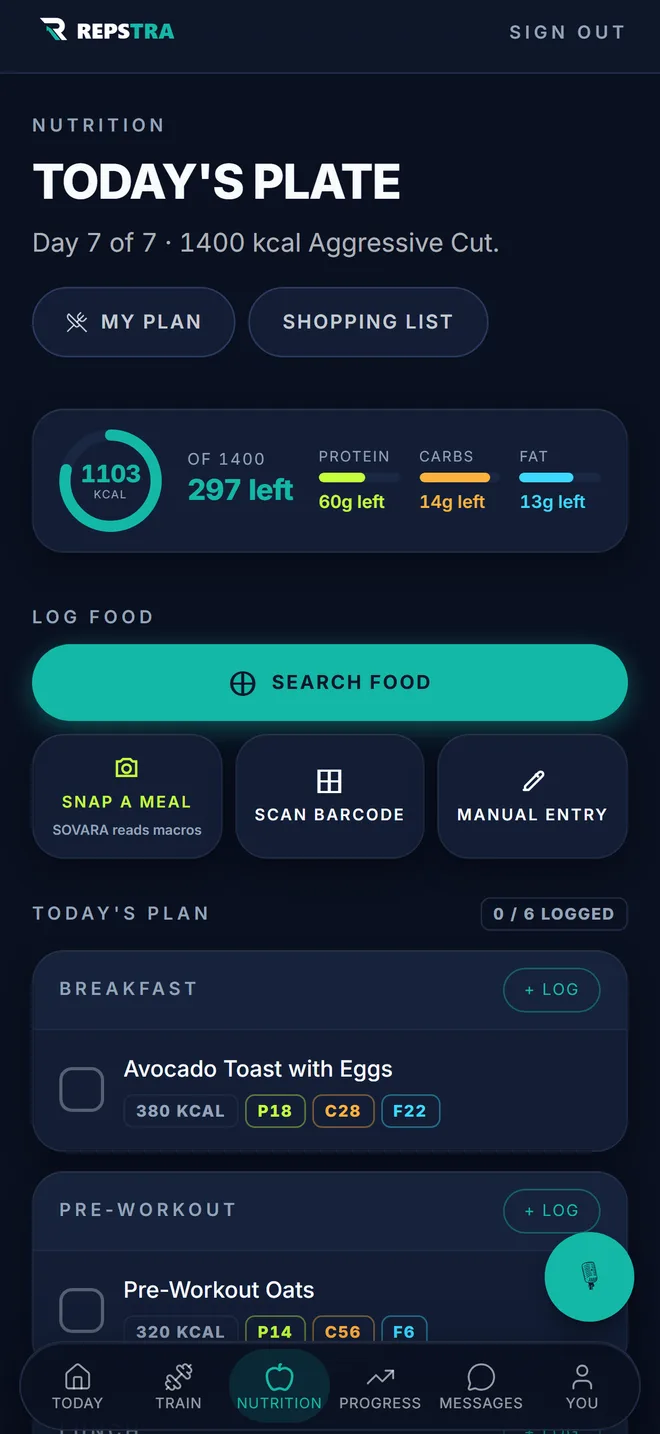
The Nutrition tab — every logging path starts here.