
Switching platforms shouldn't mean retyping your roster. The importer reads Trainerize and TrueCoach exports as-is, and any other CSV with a name and an email column.
- 1
Export from your old platform
Grab your client list as a CSV — from Trainerize, TrueCoach, or a plain spreadsheet export. Name and email are the only columns Repstra needs; extra columns are ignored.
- 2
Open the importer
On Clients, open the More menu in the header and choose Import CSV. Drag your file onto the dropzone or click Choose file.
- 3
Check the column mapping
Repstra guesses your Name column and Email column automatically — Trainerize and TrueCoach exports map without any clicking. If your sheet splits names, choose Use first + last name columns and point at both. A preview table shows the first ten rows so you can sanity-check before anything happens.
- 4
Import and invite
Leave Send branded invite emails now ticked to invite everyone as they import — or untick it to import quietly and invite later. Click Import clients →. When it's done you get the honest tally: imported, duplicates skipped, invalid rows, invites sent. Clients already on your roster are never duplicated.
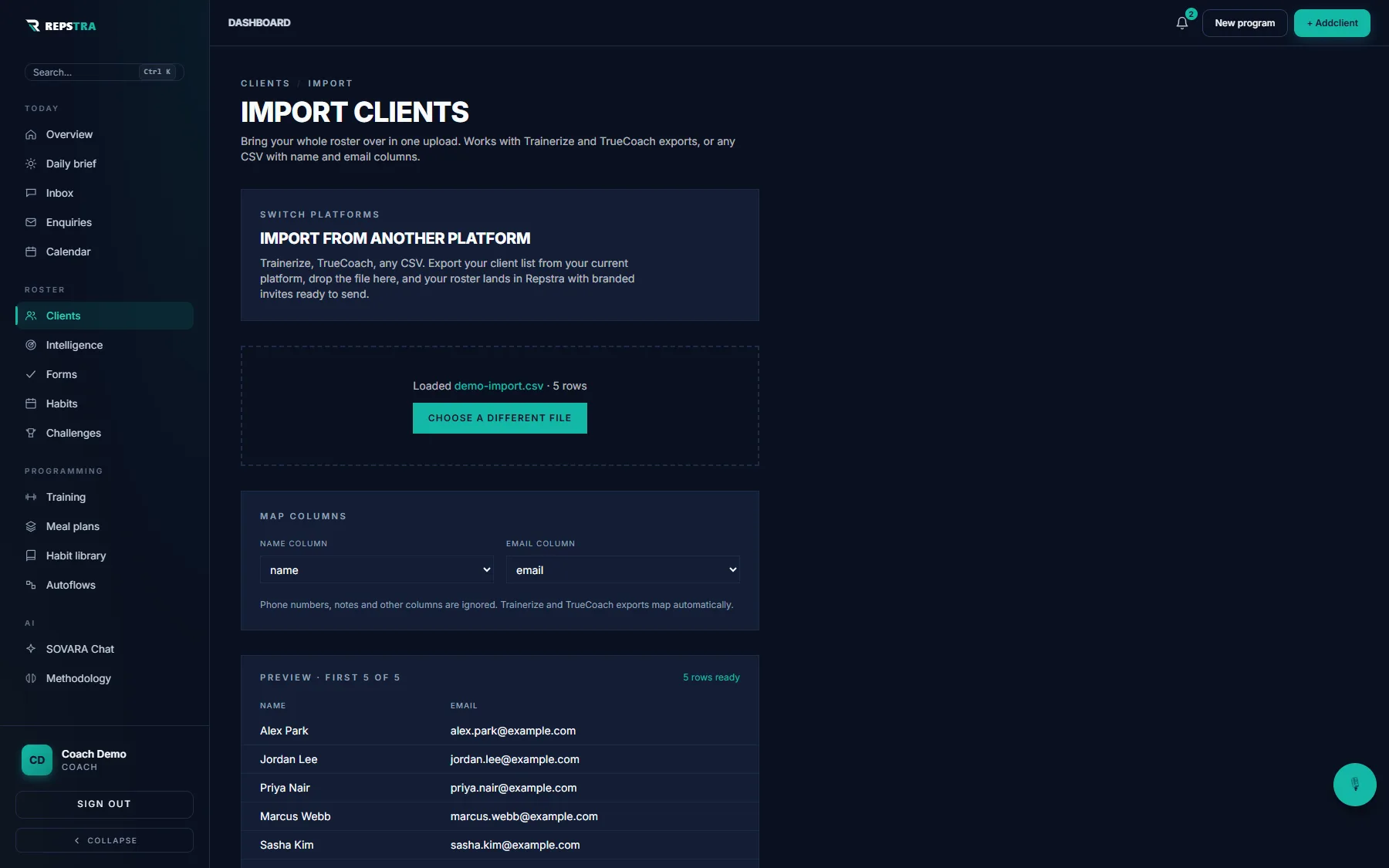
A CSV loaded: columns mapped automatically, preview before anything imports.
A 40-client migration is one coffee, not one weekend — and your clients get a branded invite that looks like you, not like software.