
Meal plans in Repstra are grids, not PDFs: days across, meal slots down, and every cell a recipe, a custom food, or a flexible swap slot the client fills themselves. The client sees it live in their app and ticks meals off as they eat.
- 1
Start a new plan
Go to Meal plans and click + New meal plan. Give it a Name, and optionally set the plan's daily targets — kcal / day, Protein g, Carbs g, Fat g. Want a head start? The SOVARA generate button drafts an entire plan to those targets, which you then edit like anything else.
- 2
Add days and fill the grid
Click + Add day for each day of the plan. Every day has slots for Breakfast, Lunch, Dinner, Snack, Pre-Workout and Post-Workout. Fill a cell with + Add to search your recipes, or Custom to type a food with its macros inline. Meal cards drag between cells and days, and the Per-day average card keeps a running macro tally as you build.
- 3
Add swap slots for flexibility
Rigid plans get abandoned. Hit the ⇄ on any meal to turn it into a Swap slot: pick a focus (protein, carbs, fats or calories) and a target, then list the options — add them yourself or click Suggest with Sovara for up to eight. The client picks whichever option suits their day, and the macros still land.
- 4
Save and assign
Click Save(the meal-plan builder saves manually, unlike the workout editor — don't navigate away without it), then Assign to attach the plan to a client along with their macro targets.
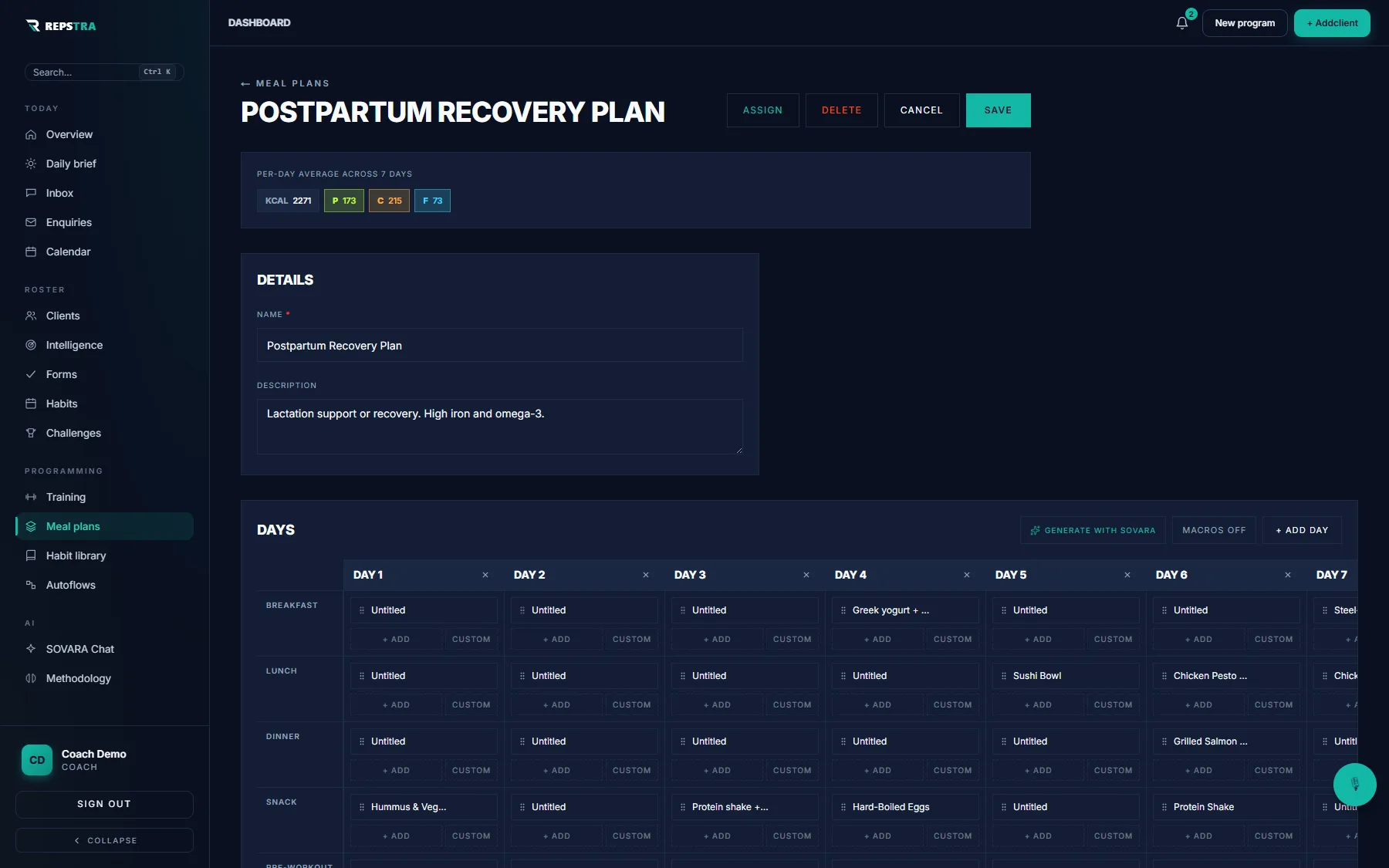
A 7-day plan on the grid — meal slots per day, per-day macro average up top.
A week's plan with swap slots takes one sitting to build and survives contact with real life — which means fewer “can I eat this instead?” messages for you to answer.