The kiosk is a locked, fullscreen web page that runs on any tablet with a camera — no app install, no hardware purchase. Members scan the QR code from their Repstra app; anyone without a phone gets checked in by name in two taps.
- 1
Grab the kiosk link
In your studio dashboard, go to Check-ins and find the Kioskcard. It shows your studio's dedicated kiosk URL. Click Open kiosk → to launch it on this device, or Copy URL and open it in the browser on your front-desk tablet.
- 2
Sign in as staff and go fullscreen
The kiosk only runs for a logged-in studio staff member — any role works, including Front desk. Once it loads, allow camera access and tap Fullscreen in the top corner to lock it into kiosk view.
- 3
Members scan their QR code
The screen shows a live camera view with the prompt “Hold your Repstra QR code up to the camera”. A member opens their QR code in the Repstra app and holds it up — the kiosk confirms with their name, their visit count for the week, and any XP they earned. If they're already checked in today, it says so instead of double-counting.
- 4
Fall back to manual when needed
Left the phone in the car? Tap Manual check-in, type into Search members by name…, and tap the member. Same check-in, same feed.
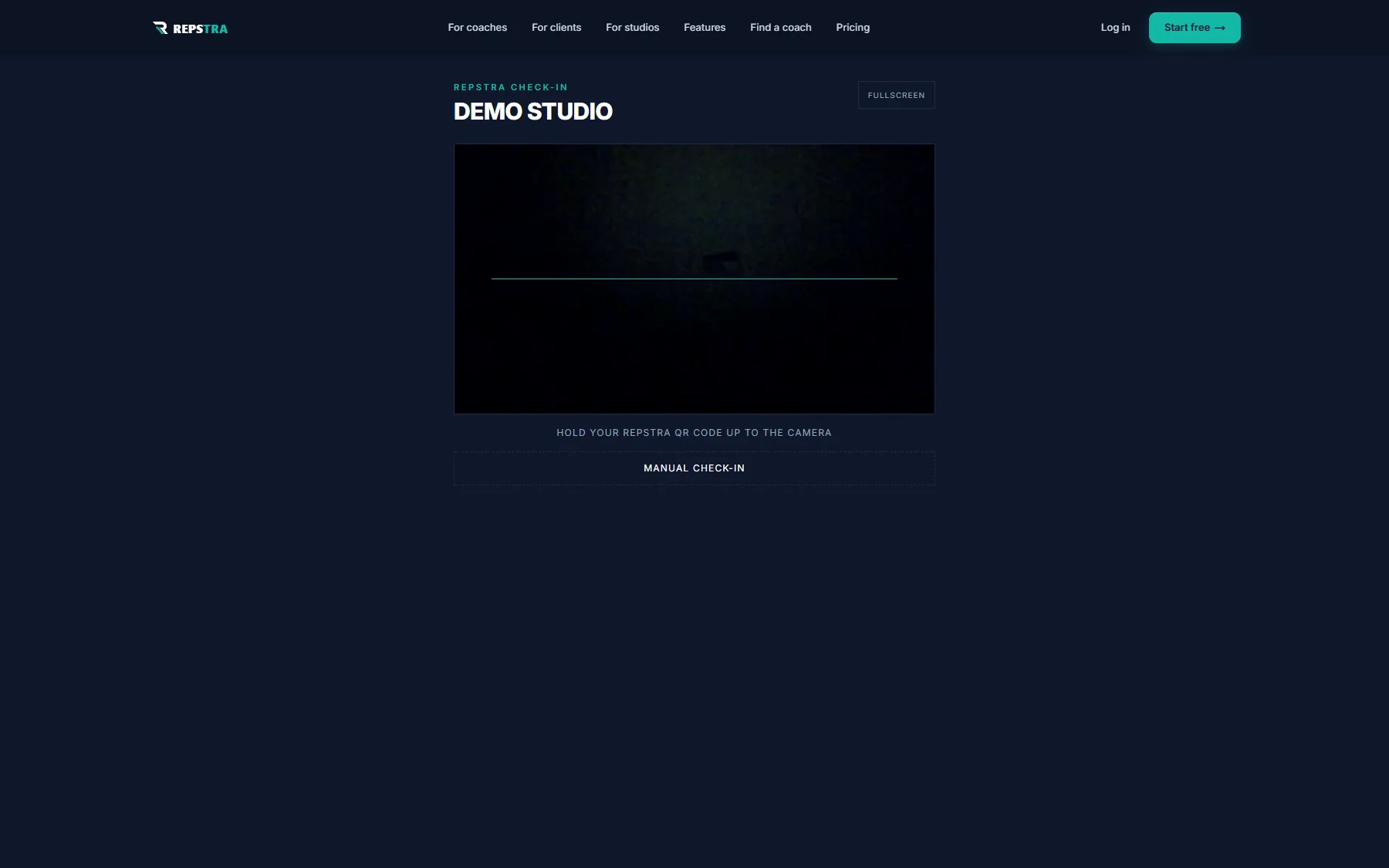
The kiosk page — camera scanner, QR prompt, and manual check-in underneath.