
Repstra's app check-in is GPS-based: once your gym's location is saved, any member standing at your site gets a one-tap Check in button in the app. No turnstile integration, no reader hardware — it works at any gym. Until the location is set, the button stays hidden, so this two-minute job is the switch that turns it on.
- 1
Open Settings and find the location card
In your studio dashboard, go to Settings and scroll to the card labelled App check-in location. (If it's not set yet, you'll also see an amber banner on your Check-ins page — Set your gym location to switch on app check-in — that links straight here.)
- 2
Type your address and click Find
Enter your address in the Gym address field — e.g. 12 Smith St, Richmond VIC 3121 — and click Find. Repstra looks it up and shows the matched address underneath so you can confirm it grabbed the right spot. If you're standing at the gym right now, the shortcut or use my current location fills it from your device instead.
- 3
Adjust the radius if you need to
Expand Coordinates & check-in radius if you want to fine-tune the exact Latitude, Longitude or Radius (metres). The default 150 m suits most sites — big enough to cover the car park, small enough that the café across the road doesn't count.
- 4
Save
Click Save location. You'll see the confirmation: “Saved. Members can now tap Check in from the app when they're at your gym.”
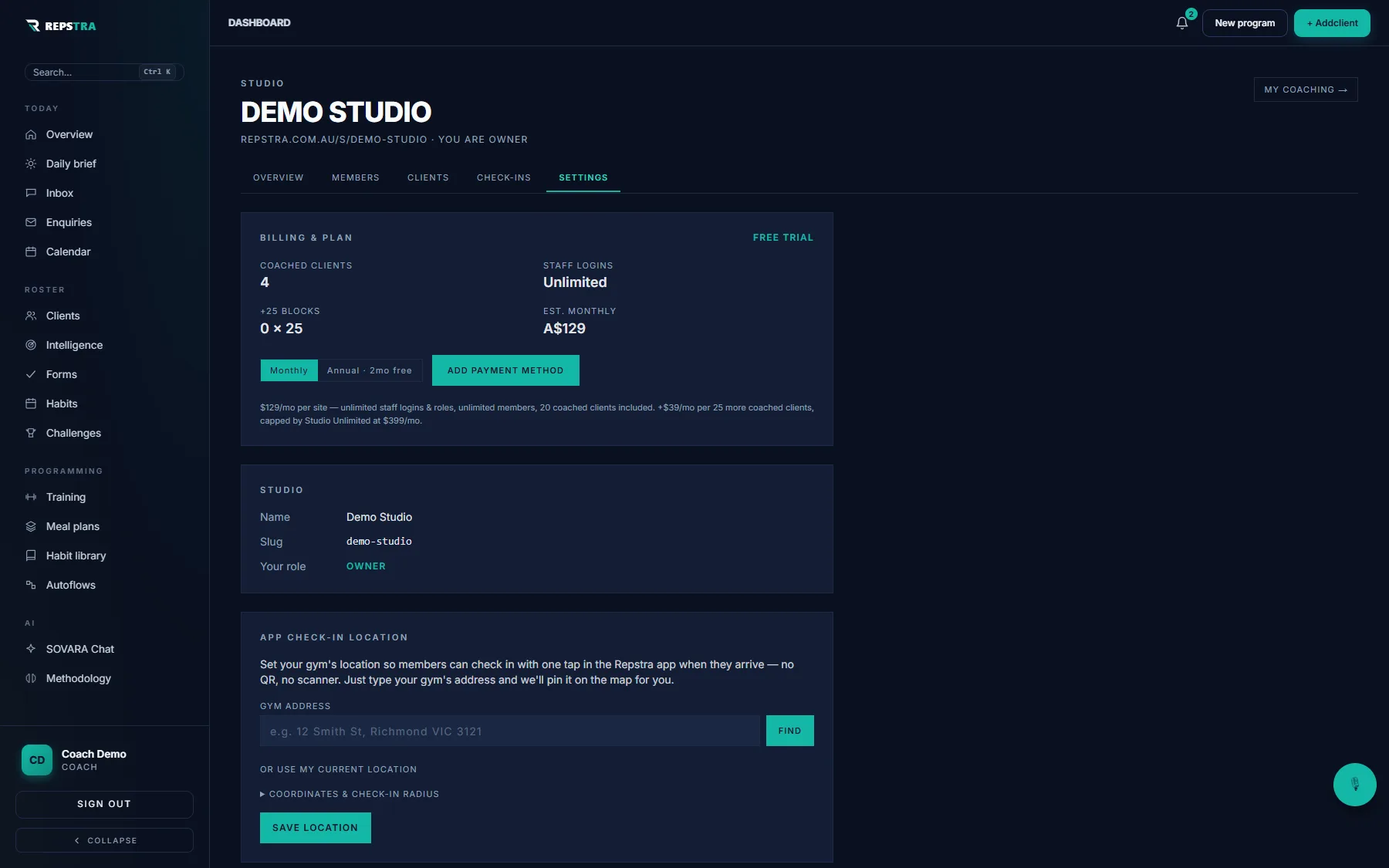
Studio Settings — the App check-in location card, with billing and plan above it.