
A roster of imported members is just a list. The moment one of them has a trainer and a program, they're coached— they get workouts in the app, a coach who sees their check-ins, and a reason to keep showing up. Members who feel coached don't cancel. Here's the shortest path to your first one.
- 1
Pick the member
Go to Studio → Clients and pick someone from the roster. A tip straight from a gym owner: make your first coached member a staff member. They give honest feedback, and you see the whole loop working before you put a paying member through it.
- 2
Assign a trainer
In that member's row, use the dropdown in the Assigncolumn and pick a trainer. (For a member who isn't attached to a coach yet, the dropdown reads Attach + assign….) That's it — the member now sits on that trainer's coaching roster.
- 3
The trainer opens the client
The trainer signs in and finds the member under their own Clientslist (the studio shell links them there — assigned clients live under Clients, not the studio tabs). Opening the client's profile lands in the full coaching workspace: programming, nutrition, messages, check-ins.
- 4
Assign a program
From the client's profile the trainer assigns a training program — existing template or one they build. The member's app fills with their week of workouts, and the coaching relationship is live.
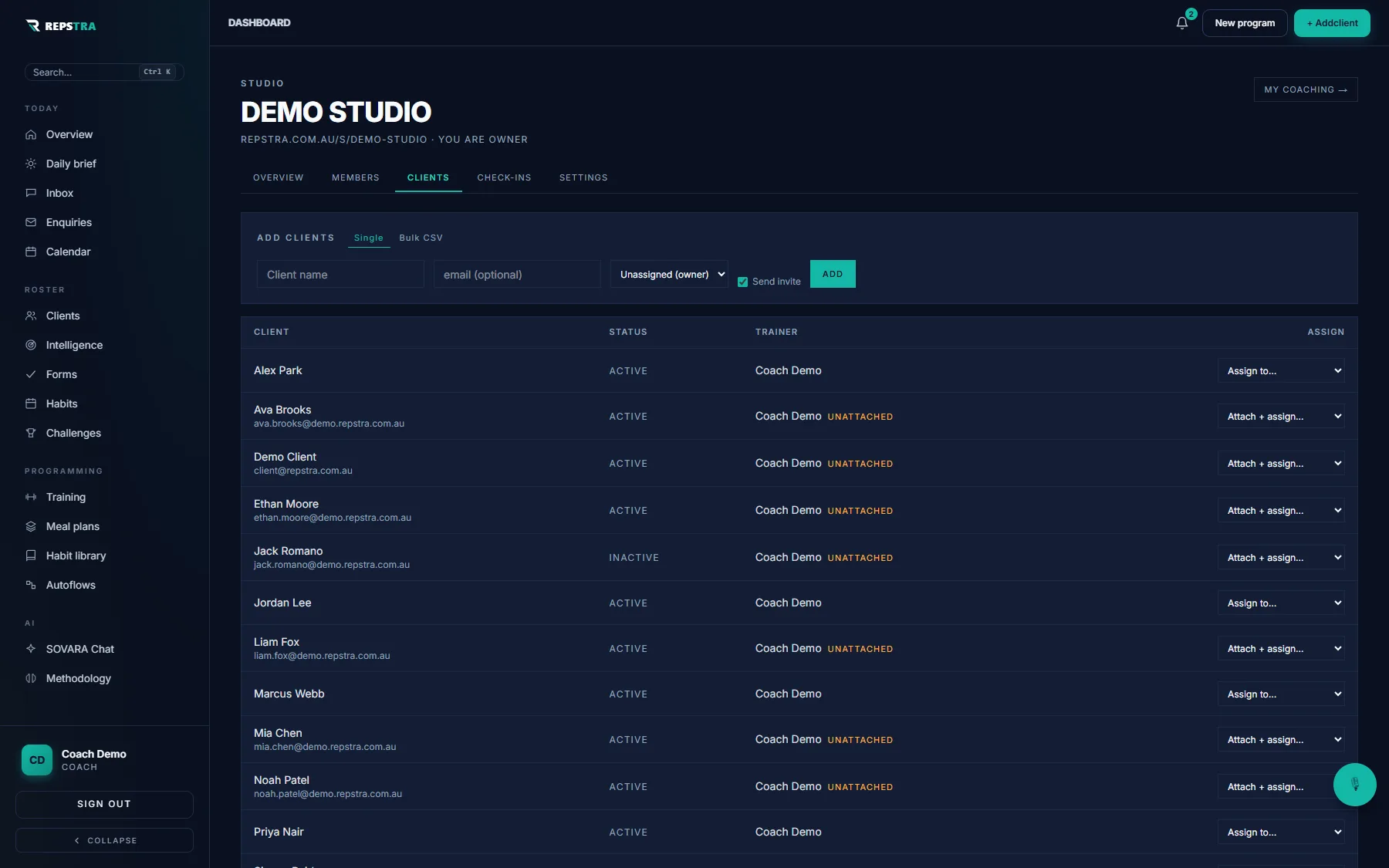
The studio roster — every member has an Assign dropdown in the right-hand column.